


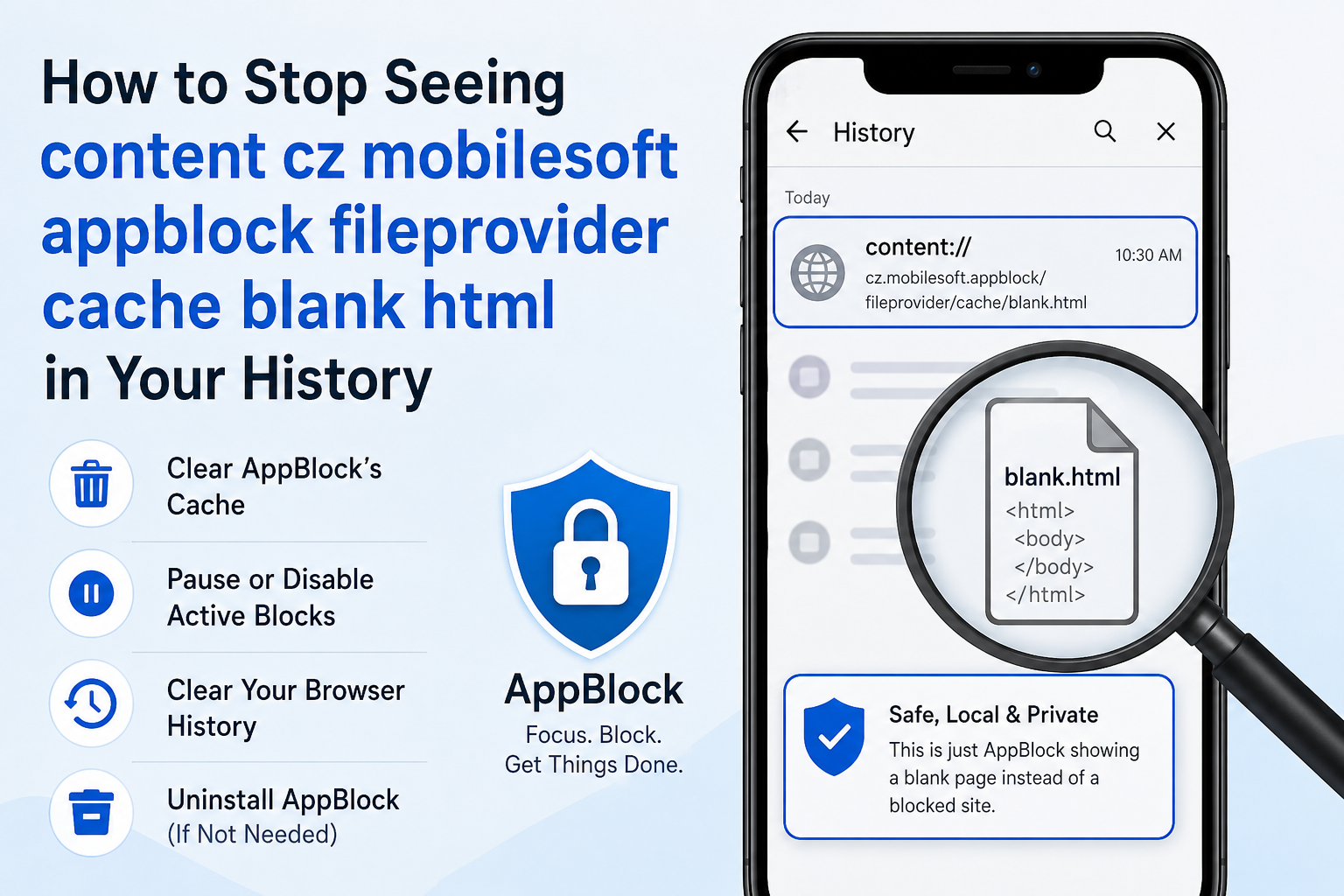
If you use an Android phone and you have ever installed a focus or screen-time app, there is a good chance you have bumped into a strange line of text sitting in your browser bar or your device history. It looks something like this: Content cz mobilesoft appblock fileprovider cache blank html. At first glance it looks technical, maybe even a little alarming, especially if you were not expecting it. The good news is that this string is neither a virus, nor a tracking tool, nor a sign that something has gone wrong with your phone. It is simply a byproduct of how the AppBlock app manages the sites and apps you have chosen to block.
This article breaks down exactly what this content URI means, why Android generates it, how AppBlock uses it, and what you can do if you would rather not see it in your history at all.
Where This String Comes From
AppBlock is a productivity and digital wellbeing application built by MobileSoft, a Czech software company. The app has been around since 2015 and is used to restrict access to distracting apps and websites during work hours, study sessions, or any period when someone wants to protect their attention. It is available on Android, iOS, and as browser extensions for Chrome, Edge, and Brave.
When AppBlock is active and you try to open a site you have added to your blocklist, the app does not simply throw up an error message. Instead, it intercepts the request at the system level and swaps the real page for a harmless, empty local file. That local file is what generates the address you are seeing. In other words, the string is the digital equivalent of a closed door where a website used to be.
Breaking Down Each Part of the Address
Every section of the URI has a specific job inside Android’s architecture. It looks confusing as a whole, but each piece is straightforward on its own.
content:// — This is not a web address the way https:// is. It is Android’s internal scheme for accessing data that lives inside an app rather than out on the internet. Whenever you see content:// at the start of a link, it means the operating system is being asked to fetch something from a local app resource, not from a remote server.
cz.mobilesoft.appblock — This is the package name that uniquely identifies the AppBlock application in the Android ecosystem. Every app on the Play Store has one of these identifiers, and “cz” simply reflects the developer’s home country, the Czech Republic.
file provider — Android apps are not normally allowed to hand raw file paths to other apps for security reasons. A FileProvider is the officially recommended component, documented by Google itself, that lets an app share a specific file safely without exposing its internal storage structure. AppBlock uses this component to serve its placeholder page to your browser.
/cache/ — This tells you the file is sitting in temporary storage rather than being a permanent part of the app. Cached files can be deleted, rebuilt, or replaced at any point without affecting the app’s core functionality.
blank.html — The actual file being loaded. As the name suggests, it is an essentially empty HTML page with no real content, no scripts pulling in outside data, and nothing that could load a blocked site even partially.
Put together, the full address simply means: “AppBlock’s file-sharing component is showing a blank cached page instead of the site you tried to open.”
Why You See It So Often
Once AppBlock has been set up with a blocklist or a focus schedule, this redirect happens every single time you attempt to visit a restricted address while a block is active. If you are someone who habitually checks social media or a particular site out of muscle memory, you might see this entry appear dozens of times a day in your browsing history, simply because each attempt registers as a new visit even though nothing actually loaded.
This is also why the string sometimes shows up in app crash logs or diagnostic tools used by developers. If you are troubleshooting a browser or reviewing device activity for a shared or managed phone (a work device or a child’s device, for example), it is worth knowing this pattern in advance so it does not look like a bug or an intrusion.
Is It Safe?
Yes. This is one of the most common questions people search for, so it is worth stating plainly: the file never connects to an outside server, never transmits data anywhere, and never executes hidden scripts. It is a static, empty HTML document stored locally on your own device. Seeing it in your history is actually a sign that a safety feature you set up yourself is working as intended, not a sign of compromise.
That said, if you did not install AppBlock yourself, or you see this address on a device you do not recognize, it is worth checking your installed apps list, since it could mean someone else has configured blocking rules on that phone using AppBlock, perhaps a parent, employer, or IT administrator managing a shared device.
How to Remove or Reduce These Entries
If the repeated entries in your browser history bother you, or you simply want a cleaner activity log, there are a few straightforward options:
- Clear AppBlock’s cache. Go to your phone’s Settings, open Apps, select AppBlock, tap Storage & Cache, and choose Clear Cache. This removes the current blank.html file along with other temporary data the app has stored. Note that AppBlock will simply recreate the file the next time it blocks something, since it needs it to function.
- Pause or disable active blocks. If you temporarily turn off a block or a focus session, AppBlock stops intercepting those sites, and the address will stop appearing until you reactivate blocking.
- Clear your browser history separately. Since each blocked attempt is logged as a visit by your browser, clearing history in Chrome or your default browser will remove old entries even if AppBlock itself keeps running.
- Uninstall AppBlock. If you no longer need the blocking functionality at all, removing the app stops the redirects permanently. Keep in mind this also removes whatever screen-time protections you had set up, so it is worth weighing that trade-off first.
None of these steps carry any risk to your device. You are only managing cache and history, not touching core system files.
A Developer’s Perspective
For anyone building Android apps, this particular URI is also a useful, real-world example of Android’s FileProvider pattern, which Google recommends over exposing raw file:// paths for security reasons. If you are curious about the underlying mechanism, Android’s own developer documentation on sharing files with FileProvider walks through how apps declare provider authorities, define cache paths in an XML resource, and grant temporary, permission-scoped access to files. AppBlock’s implementation is a fairly typical use of that pattern: rather than letting the browser attempt (and fail) to reach a blocked domain, the app substitutes a controlled, permission-scoped local resource instead.
If you want to read more about how AppBlock’s blocking features work in general, including scheduling and strict mode, the developer’s own support pages on the official AppBlock website are the most reliable source, since third-party explainers can vary in accuracy.
Final Thought
A string like Content cz mobilesoft appblock fileprovider cache blank html looks intimidating mainly because it is unfamiliar, not because it is doing anything unusual. Once you know it is simply AppBlock’s way of swapping a blocked website for an empty local page, the mystery disappears. It is, in a small way, evidence that a tool you set up to protect your focus and time is doing exactly what you asked it to do. If it still bothers you appearing in your history, clearing the app’s cache or adjusting your active blocks will take care of it in a couple of minutes, no technical troubleshooting required.
